Wi-Fi Router Buyer's Guide 2026: Why Your Speed Test Never Matches the Box
The number on the router's box is real, but it was never built to survive your drywall, your basement, or your neighbor's five overlapping networks. Here's what actually decides your Wi-Fi speed at home in 2026.
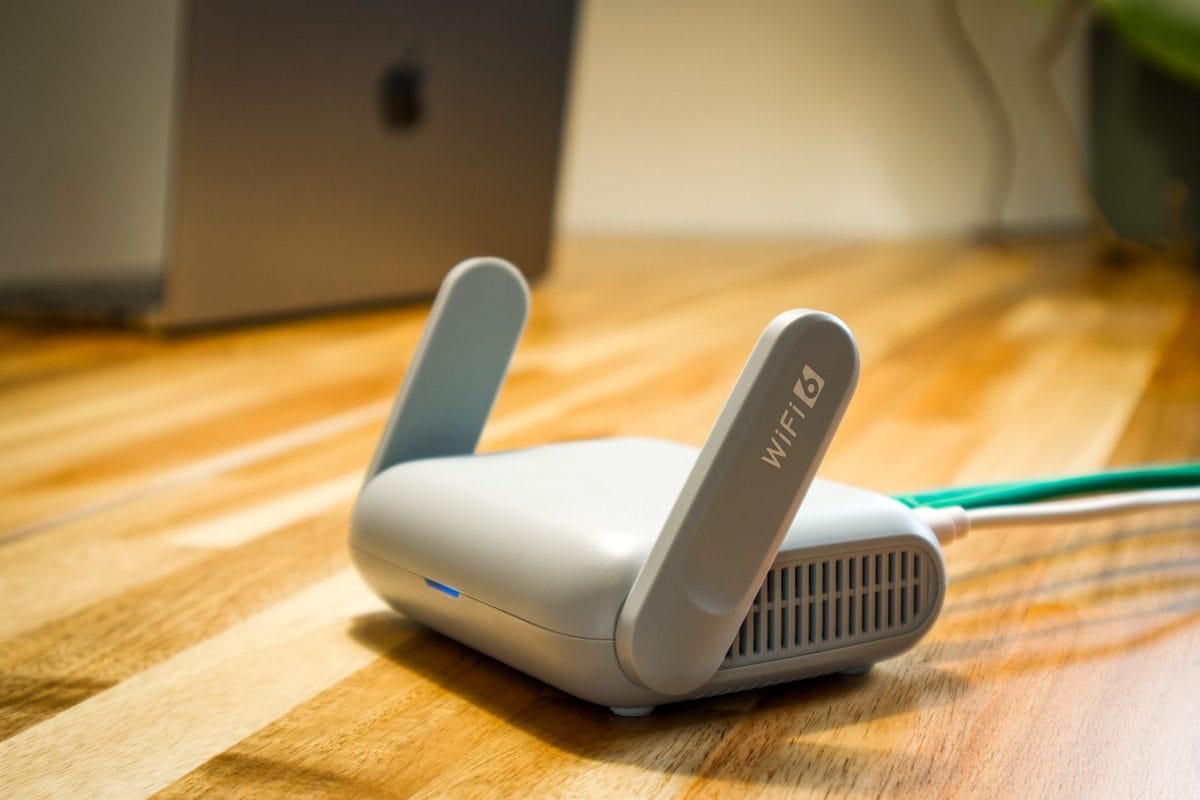
Your video call freezes for the third time this week, right as you're mid-sentence in front of your boss, and the first instinct is to blame the internet provider. That diagnosis is usually wrong. Most home Wi-Fi trouble in 2026 isn't a bandwidth problem at all — it's a router problem, and more specifically, a router that was never built to cover the house you actually live in. The box promised AX6000 or BE9300, numbers that read like rocket fuel, and none of that has much to do with the actual megabits reaching your laptop through two drywall walls and a floor. Those figures are the combined theoretical throughput of every radio band inside the router added together, a number no single device will ever see, because your laptop connects to exactly one band at a time. Manufacturers aren't technically lying — the math checks out on a spec sheet — but the number was never designed to predict what happens in your kitchen at 7 p.m. when three people are streaming and one is on a call.
The Number on the Box Isn't Lying, It's Just Useless
Here's the part worth understanding before you buy anything: real-world speed depends far more on obstacles and distance than on the headline number printed by marketing departments at Netgear, TP-Link, or Asus. Wi-Fi signals lose strength passing through drywall, lose considerably more through brick or concrete, and drop off sharply through anything metal, including a refrigerator or a stud wall packed with electrical conduit. A router rated for "up to 6,000 square feet" in a brochure is being tested in an open warehouse with no interior walls, not your three-bedroom colonial with a finished basement. That's why a $400 flagship router can still leave your home office with two bars of signal while a $150 mesh kit covers the same house evenly — coverage architecture beats raw horsepower every time walls and distance are the actual problem, and they almost always are. Distance matters even without a single obstacle in the way, since every router's signal weakens on a predictable curve the farther you move from it, which is why the bedroom directly above the router on the next floor up sometimes gets a better connection than the living room thirty feet away on the same level. None of that shows up on the packaging, because "signal degrades with distance and drywall" doesn't sell routers the way "AX6000" does.
None of this means the spec sheet is worthless. Look past the AX6000-style aggregate number to the per-band figures underneath it, because that's the throughput any single device will actually get. A router advertising "AX3000" on its 5 GHz band is a meaningfully different product from one hitting "AX1200" on that same band, even if their combined marketing numbers land close together. And check the processor and RAM specs buried near the bottom of the listing — a router juggling fifteen smart-home devices, two laptops, and a 4K stream needs real horsepower to manage all those connections, not just a fast radio.
Mesh vs. a Single Router: This Is a House-Size Question, Not a Speed Question
Here's the blunt version: if your home is under 1,500 square feet and single-story, you don't need mesh.
A single high-quality router, placed centrally, will cover that footprint without a dead spot, and adding a mesh system to a small apartment is usually just spending extra money to manage extra hardware you don't need. The math changes the moment you add a second floor, a finished basement, or push past roughly 1,800 square feet on one level. At that point, a single router's signal has to punch through enough framing and flooring that even a strong unit starts to sag before it reaches the far bedroom, no matter how many antennas are printed on the box. Mesh systems solve this by placing multiple small nodes around the house, each one handing your phone off to the next node as you walk from the kitchen to the bedroom, and the good ones do that handoff without the two-second connection freeze that gave early mesh systems a bad name back in 2019.
For a two-story house in the 2,000–3,000 square foot range, a three-node mesh kit like the TP-Link Deco BE63 (roughly $220 for a two-pack, more for a third node) or the eero Pro 6E two-pack (around $300) covers the space evenly, and either is a smarter buy than a single $400 router fighting its way through two floors of joists. Buy the mesh kit if your house has more than one level — a single router, however expensive, will not reliably fix a dead zone in a finished basement, and no amount of external antennas changes that math.
Mesh isn't free of trade-offs, though. Every hop between nodes costs some bandwidth unless the system has a dedicated wireless backhaul band or supports a wired Ethernet backhaul between nodes, and budget mesh kits that skip this corner-cutting can leave the farthest node meaningfully slower than the one plugged directly into your modem. Check the spec sheet for a dedicated backhaul radio or wired backhaul support before you buy anything — without it, you're trading one set of dead zones for a different kind of speed loss three rooms away.
Wi-Fi 6E and Wi-Fi 7, Decoded for People Who Just Want It to Work
Wi-Fi 6E's one meaningful addition over plain Wi-Fi 6 is the 6 GHz band, a wide, freshly opened slice of spectrum that almost nothing else in your building is using yet — no neighbor's aging router, no baby monitor, no garage door opener squatting on the same channel your laptop wants. That matters more in apartment buildings and dense neighborhoods, where dozens of 5 GHz networks are already stacked on top of each other, than it does in a detached house with generous lot spacing where 5 GHz congestion was never that bad to begin with. Wi-Fi 7 goes further with wider 320 MHz channels and a feature called Multi-Link Operation, which lets a compatible device use two bands simultaneously instead of picking one and sticking with it, and the theoretical payoff is lower latency alongside higher peak throughput.
The catch is that almost none of your current devices can use Wi-Fi 7's best trick yet. Multi-Link Operation requires a Wi-Fi 7 radio on both ends of the connection, and as of 2026 that mostly means recent flagship phones — the latest Galaxy S-series and iPhone Pro models — plus a handful of laptops carrying the newest Intel or Qualcomm wireless chips. Buy a Wi-Fi 7 router today and most of your existing gadgets will still connect over Wi-Fi 6E or plain Wi-Fi 6, getting a real benefit from the wider channels but none at all from Multi-Link Operation until you've replaced the rest of your devices too.
If you're buying this year, Wi-Fi 6E is the smarter value call for most households — Wi-Fi 7 hardware carries a premium of roughly $100–150 over an equivalent 6E unit for a marquee feature your phone probably can't use yet. Wait on Wi-Fi 7 until your phone and laptop have both caught up, unless you're the kind of buyer who replaces every device on a two-year cycle anyway.
What to Actually Buy at Each Budget
Once you know your square footage and floor count, the budget tiers sort themselves out fast:
- Under $150 — single router, small home: the TP-Link Archer AX55 or a similarly specced Wi-Fi 6 router from Asus covers most apartments and single-story homes under 1,500 square feet without any fuss.
- $150–$300 — two-node mesh, typical house: the TP-Link Deco BE63 two-pack or the eero Pro 6E two-pack is the sweet spot for a two-story home in the 1,800–2,800 square foot range.
- For anything larger than 3,000 square feet, or a house with genuinely thick walls — old plaster-and-lath construction, stone, anything built before central heating existed — budget for a third mesh node rather than assuming two will stretch far enough, because in that kind of house they usually don't.
- $600 and up — the prosumer setup: a Netgear Orbi 970 three-pack (around $1,500) or a Ubiquiti Dream Router paired with two or three UniFi access points makes sense once you're running smart-home hubs, NAS backups, and multiple 4K streams at once, and honestly, most households will never need to spend this much.
Plenty of solid routers land between these tiers, too — treat the four above as anchor points for where you sit, not the complete list of everything worth buying.
The ISP-Rental Router Is Probably Costing You More Than the Upgrade Would
Most cable and fiber providers charge $10–15 a month to rent a combo modem-router unit, and that box is quietly costing you $120–180 a year for hardware that's frequently two or three Wi-Fi generations behind what you could own outright for a single upfront payment. Worse, ISP rental units are usually placed wherever the cable line happens to enter the house — a basement corner, a utility closet — rather than the center of your home where signal actually needs to originate. The fix isn't complicated: call your provider, ask them to switch the rental unit into bridge mode (sometimes called "modem-only mode"), and let your own router or mesh system handle all the Wi-Fi broadcasting from wherever you actually place it.
Skip this step and even the best router money can buy will be stuck rebroadcasting a weak signal from a bad location, or fighting the ISP's own router for control of your network in a "double NAT" configuration that occasionally breaks online gaming and video calls in ways that are maddening to diagnose. Ask specifically for bridge mode by name when you call — some support agents will default to "helping" by just adding your new router as an extender instead, which defeats the entire point.
Three Setup Mistakes That Undo a Good Router
Buying the right hardware is maybe sixty percent of the job. Placement, channel selection, and device management do the rest, and all three get ignored constantly:
- Don't hide the router or main mesh node inside a TV cabinet, a closet, or behind a large fish tank — signal loss from enclosed spaces and standing water is real, and a router tucked out of sight for cosmetic reasons is a router working at half capacity.
- Leave channel selection on automatic unless you have a specific reason not to; manually locking a channel because a forum post from 2018 told you to almost always backfires once a neighbor's new router shows up on the same one.
- Smart bulbs, plugs, and other low-bandwidth IoT gadgets belong on a separate guest network or the 2.4 GHz band specifically — a router juggling forty smart-home devices alongside your laptop's data-heavy connection will visibly slow the connection that actually matters.
Do those three things right and even a mid-range router from the $150–$300 tier will outperform a flagship unit that's poorly placed and drowning in channel noise. The gap between "good enough" and "great" Wi-Fi in most homes was never really about the chipset inside the box.